Step by step
Upgrade your plan or buy credits
Choose the Student or Researcher plan, monthly or yearly, or buy a top-up of extra credits, from Settings, Billing.
- Time
- 2 minutes
- Steps
- 4
Everything you buy in CurTask starts in Settings → Billing: a paid plan for more credits, more space and more AI help, or a top-up of extra credits on any plan. You pay on a secure payment page; CurTask never sees your card or bank details.

Step 1Open Settings → Billing
Open Settings → Billing, or choose Billing in the Credits and plan panel on Home. Your plan shows the plan you're on.
To buy credits instead of a plan, go to step 3.

Step 2Choose a plan
Choose Upgrade (on a plan CurTask set up for you, the button says Change plan). Choose a plan puts the three plans side by side with what each includes. Switch between Monthly and Yearly to see both prices (yearly costs less than twelve months), then choose Choose Researcher or Choose Student.
Pay for Researcher (or Pay for Student) opens. Choose One month or One year, then How you'd like to pay:
- Card: renews automatically at the end of each period. Cancel any time; you keep the plan until the period ends.
- FPX online banking: pays once for this month or year. CurTask emails you 7 days and 1 day before it ends so you can renew.
Have a promotion code? Choose Have a code? under Your order, type it and choose Apply. Then choose Continue to payment and go to step 4.
Note: for the Student plan without student status yet, Switch to the student price opens first. See Get the Student plan.

Step 3Or buy more credits
Under Credits, choose Buy more credits. Pick a Pack: 500, 1,400 or 3,000 credits, each valid for 12 months. Choose how you'd like to pay (FPX online banking (one payment) or Card (one payment)), then Continue to payment.
Top-ups work on every plan, including Free, and are used after the month's credits run out. Nothing renews.
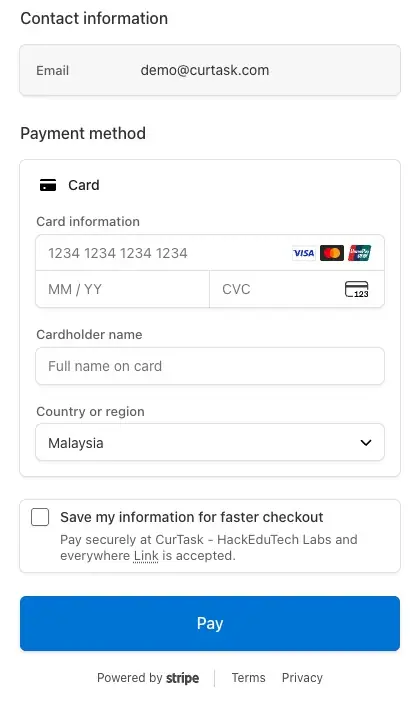
Step 4Pay on the payment page
The secure payment page opens with your order and your email. Enter your card or choose your bank, and pay.
Changed your mind? Go back without paying: CurTask tells you the payment was cancelled and nothing was charged.


What's next
Back in Settings → Billing, CurTask says the payment was received while it updates your plan (usually a few seconds), then Your plan is updated. Your new plan, credits and invoice appear on the page; download the invoice from Invoices.
On a card plan, choose Manage card or cancel to change your card or cancel. On an FPX plan, choose Renew before the period ends.
To move to another plan later, or back to Free, choose Change plan. The change happens at the end of the period you've paid for and nothing is charged that day; CurTask tells you the date, and Keep (for example Keep Researcher) calls it off. See Plans and what paid plans add and How credits work.