Library and papers
Import, find and read papers, and follow their citations.
Videos
Guides
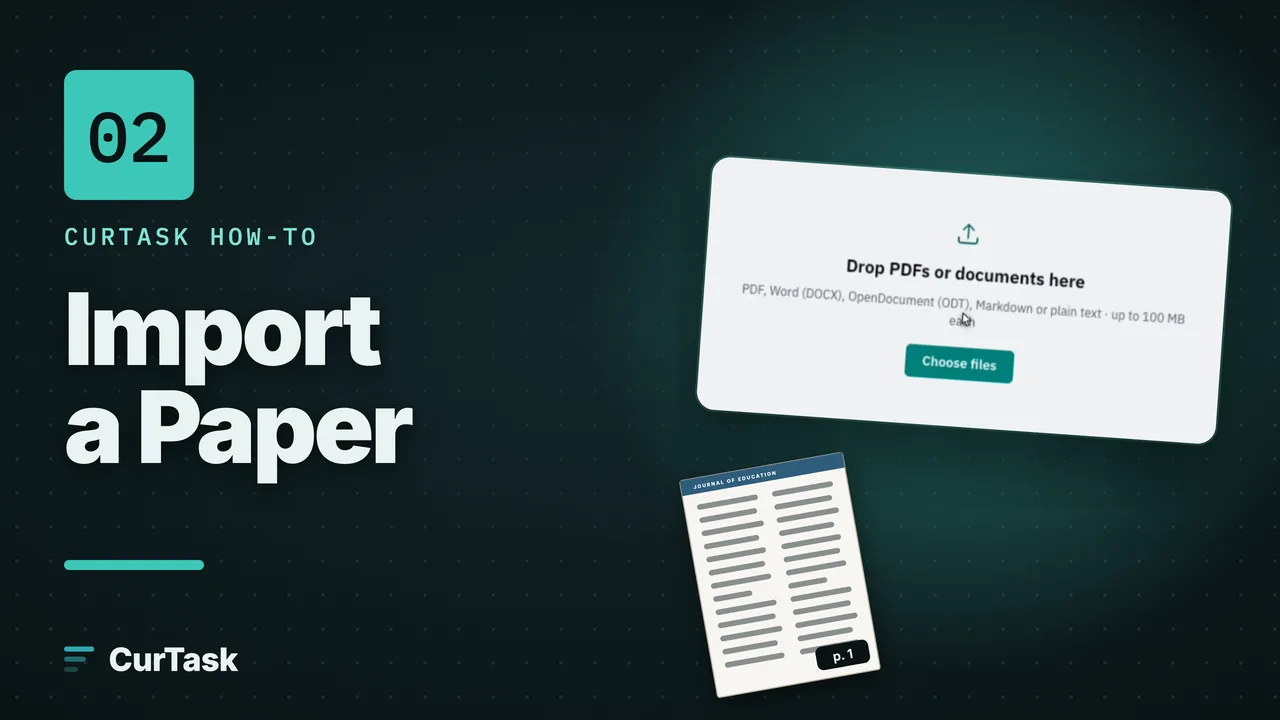
- Step by stepImport papers into your libraryDrop in PDFs or documents, choose the language of any scanned pages, and watch each paper become ready to read, analyse and cite.
- Step by stepCheck scanned pages (OCR review)Compare text that was read from a scan with the page image, and correct it so search and AI analysis use the right words.
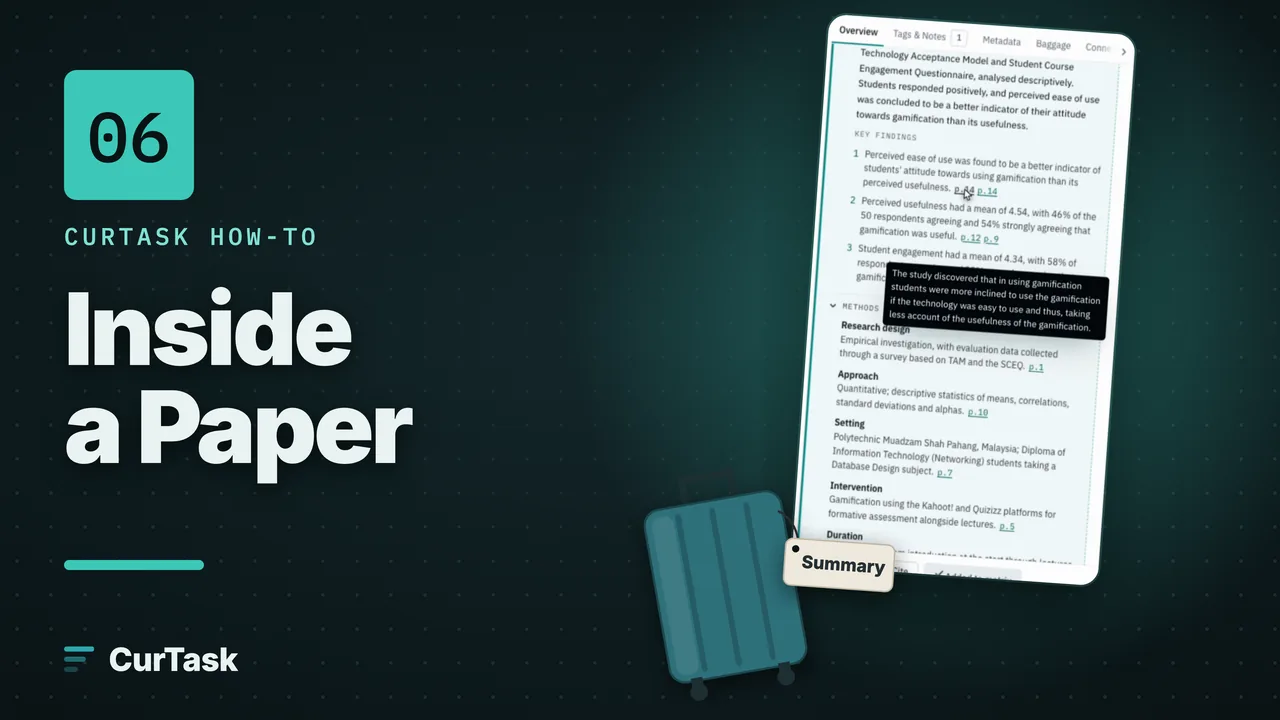
- Step by stepInside a paper: the five tabsOpen any paper to see its AI paper profile, tags and notes, details, Baggage and connections, all in one panel beside your library.
- Step by stepAnalyse a paper with AI (Expand analysis)Choose what to analyse and in which language, see the cost before anything runs, then get a summary, methods, findings and more, each with its page and quote.
- Step by stepFix a paper's title, authors or yearCorrect a paper's details by hand, or look them up again from its DOI and choose which proposed changes to keep.
- Step by stepWrite notes on a paperKeep your own notes on a paper, one project at a time. They save as you type, sync to your other devices and are never sent to the AI.
- Step by stepRead a paper in the readerOpen a paper beside your work, move between pages, zoom, and jump straight to the passage an AI result quotes.
- Step by stepCite interviews and field notes as a labelTurn a document such as an interview transcript into a named source, so your writing cites it as "(Interview 3)" and it stays out of the reference list.
- Step by stepOrganise with tags and starsTag papers once and find them by tag in every project; star the ones that matter most.
- Step by stepThe Queue: follow and control background workSee every import and AI job in one place, filter them, pause or resume them, and fix the ones that need you.
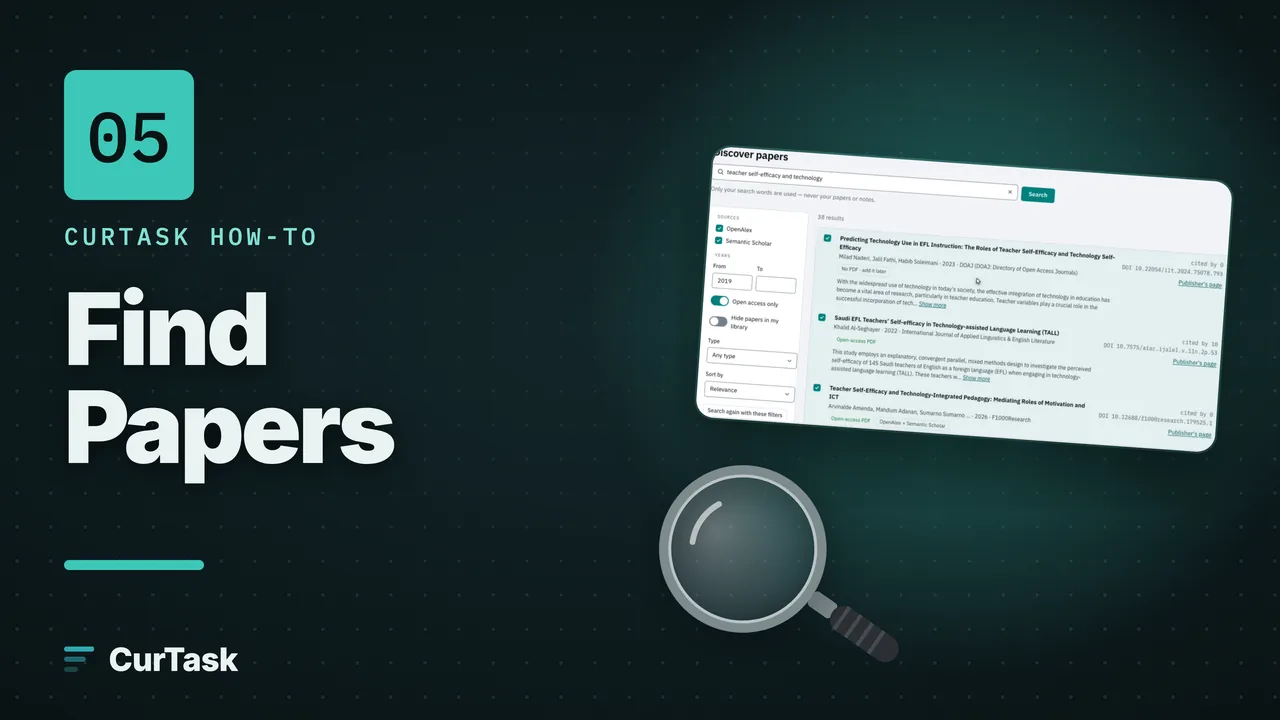
- Step by stepFind new papers with DiscoverSearch the research catalogues from inside CurTask, filter the results, tick the papers you want and import them for free.
- Step by stepFind papers like the ones in your projectLet your project's papers and keywords lead you to more papers on the same topic.
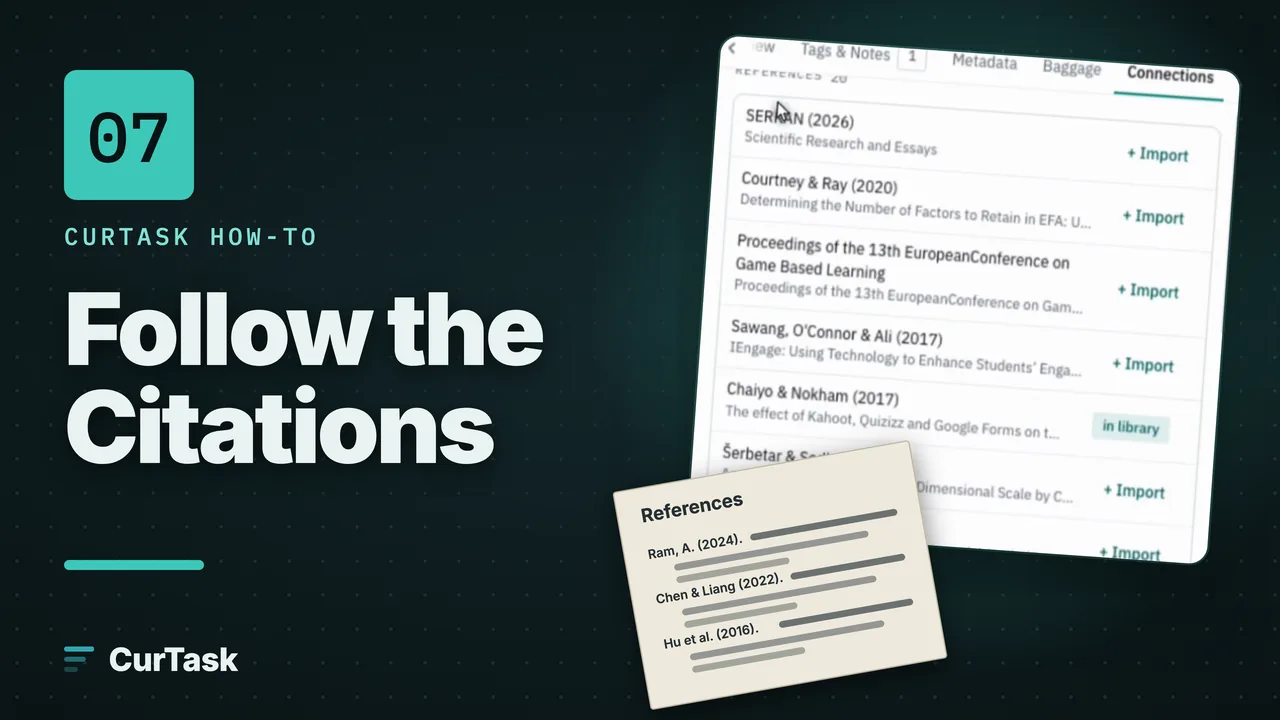
- Step by stepFollow a paper's references and citing papersUse a paper's Connections tab to see what it cites and who cites it, and import those papers in one click.
- Step by stepAdd a PDF to a paper laterAttach the PDF to a paper you saved without one. CurTask checks it is the right paper before attaching it.
Concepts
- ConceptYour Global LibraryEvery paper you own is stored once, in one place, and can join any number of projects without being imported again.
- ConceptWhat happens after you import a paperThe steps every paper goes through on its way into your library, what each status means, and why no AI runs until you ask.
- ConceptWhy CurTask asks you to keep the tab openYour papers are read on your own computer first. Here is what pauses if you close the tab, how to pick up again, and what paid plans do differently.
- ConceptDuplicate papersThe same file is never stored twice in your library. Importing it again links the paper you already have, and reusing it costs nothing.
- ConceptBaggage: what a paper carries into every projectEverything learned about a paper, from its details to its AI analyses, travels with it into every project and is reused at no cost.
- ConceptWhen an improved analysis is availableWhy the analyses you already have stay exactly as they are when CurTask's analyses improve, and how to refresh them after you have seen the cost.
- ConceptStorage, compression and freeing spaceHow much space your papers use, how compression makes them smaller without losing any text, and what to do when your storage is nearly full.
- ConceptWhat the badges on search results meanIn your library, open-access PDF, no PDF, preprint and the other labels on Discover results, and what each one means for you.
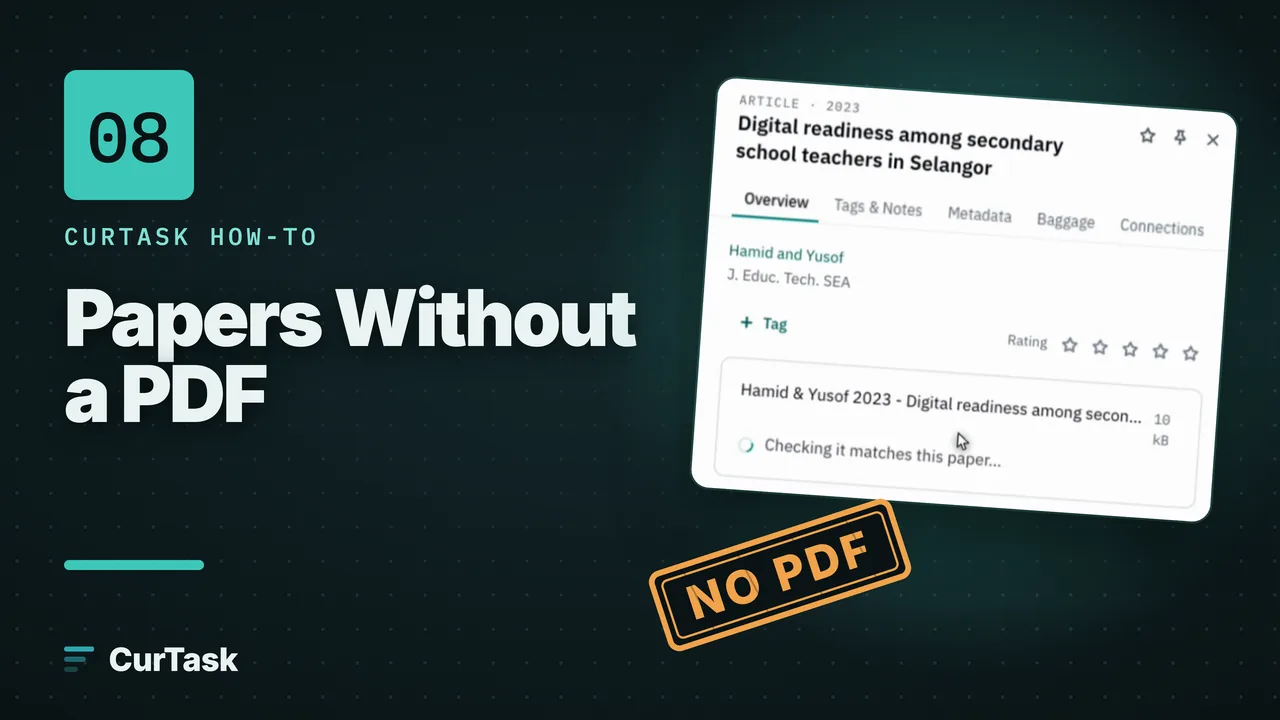
- ConceptPapers without a PDFWhat "No PDF" means, why AI leaves these papers out, and how CurTask adds a free PDF for you when one exists.